Microsoft Access DMax Counter
An Alternative to AutoNumber Data Types Using the DMax Function
Q: I need a counter on my Customer form, but I don't want
to use an Autonumber because sometimes I want to be able to skip a
number here or there, or be able to change them on the fly. How can I
create my own number that will automatically increment when I add a new
record?
A: First, make yourself a
Number field in your table. I'll call mine MyCounter.
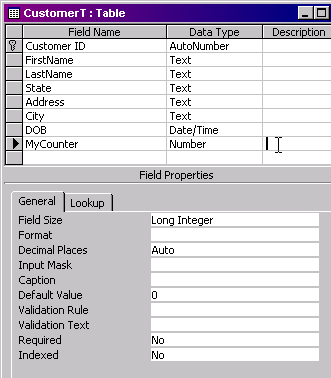
In your Customer form, add the field as a textbox. Now bring up the
Form's properties and find the BeforeInsert event. Click on
the builder button [...] and launch the Code Builder.

In the BeforeInsert event, insert the following VBA code:
MyCounter = Nz(DMax("MyCounter", "CustomerT")) +
1

What this will do is use the DMAX function to find the largest
value of MyCounter in your Customer table, and add 1 to it. The NZ
function will simply return a ZERO instead of a NULL if no value exists.
Now, when the first character is typed into a new record, the
BeforeInsert event will go out, calculate the largest counter value, add
1 to it, and put that in the MyCounter field of the new record.
Some people have emailed me asking how to use this in a SUBFORM if you
need to keep a unique counter list for each parent item. For example, if
your main form is based on OrderT and your subform is based on
OrderDetailT then you would simply put the code in the BeforeInsert
update for the subform records, and edit it accordingly:
MyCounter = Nz(DMax("MyCounter",
"OrderDetailT","OrderID=" & Forms!OrderF!OrderID)) + 1
This just says to find the largest counter from the OrderDetailT table
where the OrderID equals the OrderID of the parent form.
For more help with this Form!FormName!FieldName concept, see my
other tutorial on
Getting
a Value from an Open Form.

By Richard Rost


Click here to sign up for more FREE tips
| 


