>>> New: DLOOKUP video here
Microsoft Access DLOOKUP Function
Looking Up a Value from a Table or Query
 Q: I have a service call form where I track service calls
for each customer. I can pick a customer from a combo box, like you
covered in your
relational combo box tutorial. Now, however, I'd like to know how to
automatically set the address of the service call to the customer's
current address - but I need to be able to change it if necessary, so I
can't just show the customer's address. Help!
Q: I have a service call form where I track service calls
for each customer. I can pick a customer from a combo box, like you
covered in your
relational combo box tutorial. Now, however, I'd like to know how to
automatically set the address of the service call to the customer's
current address - but I need to be able to change it if necessary, so I
can't just show the customer's address. Help!
A: In order to do this, you're
going to need a little bit of VBA programming. Now, if you've
never done any VBA programming before, I strongly recommend you start by
taking my Access 301
tutorial. I cover all of the basics (no pun intended) of VBA programming
with Access.
Now, there is a special function called DLOOKUP (short for Domain
Lookup) which lets you look up a value in a table or query. For your
example, you need to look up the Address, City, and State fields (and
ZIP code if you have it) from your customer table where the CustomerID
is the same as the CustomerID on your service form - or in this case,
the value in your CustomerCombo box since you're picking from a list.
Here's how the DLOOKUP function works:
=DLOOKUP (Field,
Domain, Criteria)
The Field is simply any field you want to return the value of:
Address, City, State, ZIP, etc. The Domain is any table or query
where your data resides. The Criteria allows you to tell DLOOKUP
which record to return.
For example, if you want to get the last name of the customer whos ID is
5, then you'd say:
=DLOOKUP ("LastName",
"CustomerT",
"CustomerID=5")
Since you're working with a service call form and the value of the
CustomerID is in a combo box called CustomerCombo, you'd use the
following line to get the selected customer's Address:
=DLOOKUP ("Address",
"CustomerT",
"CustomerID=" & CustomerCombo)
When you put this in the AfterUpdate event for the CustomerCombo,
the Address field can be automatically populated on your form. Then,
just add in DLOOKUP statements for any other fields like City or State
that you might need.
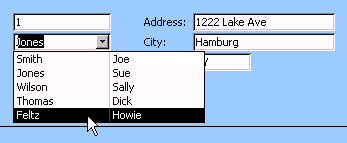
Here's a screen shot from one of my tutorials. The address fields are
automatically populated when the customer is changed using the combo
box.
Here is a FREE VIDEO TUTORIAL
that will walk you through this topic in detail.
I teach the concepts in this free mini tutorial in my
Access 302 course. These are
full courses - over 60 minutes in length each. I spend a lot more time going
over how to do this, in addition to lots more tips and tricks.
UPDATE: The DLOOKUP function was
also recently covered again in my
Access 2013 Expert Level 10
class.

By Richard Rost


Click here to sign up for more FREE tips
| 


