Access 2007-2013
Access 2000-2003
Seminars
Tips & Tricks
Access Forum
Course Index Insider Circle
Collapse Menubar
 
Tutorials   News   Tips   Templates   Forums   Help   Logon   Order  


< Previous: Access Beginner 2

Next: Access Beginner 4 >

Access 2010 Beginner Level 3
Beginner Microsoft Access Tutorial - 1 Hour, 19 Minutes


This Microsoft Access video tutorial picks up where Level 2 left off. This class focuses on a very important topic that is crucial to proper table design in Access: Field Properties for table fields. You will learn:
 
  - What are Field Properties
  - Field Size
  - Caption & Description
  - Format Property
  -
Decimal Places
  - Input Masks
  - Setting a Default Value
  - Validation Rule & Text
 
- Using Inequalities

Order Now

If you would like a preview of what's covered in this class,
click here to watch the first lesson of this course (free of charge), or scroll down for more information.


Access 2010 Beginner Level 3
Description: Access 2010 Beginner Level 3
Versions: Microsoft Office Access 2010
Access 2007 users should be able to follow along fine
Pre-Requisites: Access 2010 Beginner Level 2
Running Time: 1 Hour, 19 Minutes
Cost: $9.99


This class picks up where Level 2 left off. We will focus on the Field Properties for your table fields. You will learn about the most popular properties, including field size, caption, description, format, decimal places, input masks, default value, validation rule, validation text, and using inequalities.

We will begin by learning about the Field Size property. You will learn about field sizes for autonumbers, text, and number fields. You'll learn about the different number types and which ones you should use: byte, integer, long integer, single, double, and decimal. We'll talk briefly about Replication IDs and why you don't need them.


Next you will learn about the caption and description properties, why they're useful, what they do, and what the difference between the two are. You'll learn how to change the column header in datasheet view and how to set a status in the status bar at the bottom of a form.


You will learn about the format property, and how to set formats for several different data types including numbers, text, currency, and dates. You will learn about the different number type formats including general, currency, fixed, standard, percent, and scientific. You will learn about the decimal places property and currency formats. You will learn how to format dates and times. You'll learn about the stock time/date formats: general date, long date, medium date, short date, long time, medium time, and short time. You'll also learn how to create your own custom date/time formats, like yyyy-mm-dd. You'll learn how to format text values like phone numbers and Social Security numbers.


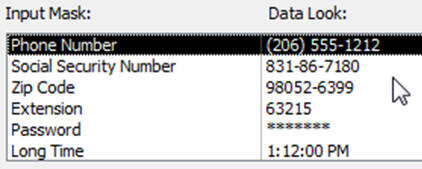
You will learn how to work with Input Masks to control the way data is entered into a field. We'll talk about placeholder characters and whether or not you want to store them in your table. We'll see many of the popular stock input masks such as phone number, zip code, password, and more.
 

You will learn about the default value property and how you can use it to create the starting value for any field. For example, if most of your customers are from New York, you can set it as the default value. You will learn how to automatically set the current date and/or time for a new record using the Date() and Now() functions.


You’ll learn about the validation rule property which allows you to specify the values that can go into fields. For example, if you want to make it so that a customer never gets assigned a credit limit more than $5000, you can do that with a validation rule. You'll learn about the validation text, which is a message you can provide if the rule is violated. We'll talk about what happens when existing data violates the validation rule. You'll learn about logical inequalities (greater than, less than, not equal to, etc.) and the keywords you can use with them (AND, OR, & BETWEEN). You'll see how you can use the Date() function in the validation rule.


This is the perfect class for anyone who is wants to learn proper table design in Microsoft Access. Understanding field properties is crucial. Of course, if you have any questions about whether or not this class is for you, please contact me.



Complete Outline - Access 2010 Beginner Level 3

0. Intro (6:53)

1. Field Properties 1 (14:40)
Design View
Field Size
AutoNumber Field Size
What is a Replication ID
Text Field Size
Number Field Size
Byte, Integer, Long Integer
Single, Double, Decimal
Warning: data may be lost

2. Field Properties 2 (5:13)
Caption
Changes default form label
Changes column header in datasheet
Don't confuse with Description

3. Field Properties 3 (16:02)
Format Property
Number Formats
General, Currency, Euro
Fixed, Standard, Percent
Scientific
With percent 1 = 100%
Decimal Places
Rounded values displayed
Actual values stored
Currency Formats
Format might hide data
mm dd yyyy, hh nn ss
F1 for Access Help
List of Date Format Codes
Text Format
Phone Numbers
@@@-@@@-@@@@
Yes/No Format
4. Field Properties 4 (5:25)
Input Mask Phone Number
Placeholder characters
Store symbols in the mask?
Enter data
Warning message on invalid data
Date/Time Input Masks
No Wizard for numbers/currency
Help for Input Masks

5. Field Properties 5 (9:47)
Default Value
State of NY
NumEmployees 1
DiscountRate .05
Automatically set current date
Date() Function
Now() Function includes time
Yes/No Default Values

6. Field Properties (16:16)
Validation Rule
Inequality Symbols
NULL Values not the same as ZERO
Existing data violates rule
Validation Text
ESC escape to cancel editing
Range of values
AND OR
BETWEEN keyword
Date Values #1/1/1980#
Date() Function in Validation Rule
Functions in Validation Text

7. Review (4:47)


Keywords: Table Field Properties, Field Size, Caption, Format, Input Mask, Validation Rule, Default Value, microsoft access tutorial, microsoft access 2010 tutorial, microsoft access 2010 training, replication id, byte, integer, long integer, single, double, decimal, description, validation text, number format, general, currency, fixed, standard, scientific, percent, decimal places, date formats, access help, date format codes, text format, phone number, placeholder characters, store symbols, set current date, date() function, now() function, inequality, null values, AND, OR, BETWEEN, date values in # symbols


Student Interaction: Access 2010 Beginner 3

Richard on 5/21/2012:  This Microsoft Access video tutorial picks up where Level 2 left off. This class focuses primarily on table field properties in Access. You will learn: - What are Field Properties - Field Size - Caption & Description - Format Property - Decimal Places - Input Masks - Setting a Default Value - Validation Rule & Text - Using Inequalities Click here for more information on Access 2010 Beginner Level 3, including a course outline, sample videos, and more.
Richard R on 5/21/2012: Now that you're finished with this class, please take a few short minutes to complete our STUDENT SURVEY and let us know what you thought of the lessons!
 david on 5/23/2012: the F1 key does not bring up the help screens when I press it on my computer

Reply from Richard Rost:

They're context sensitive, so it all depends on WHERE your cursor is when you click on F1. Also, it is possible if you didn't perform a FULL install of Office that you don't have the Help files on your computer. Rare, but possible.

 david on 5/23/2012: when I press escape once it reverts the whole record back to what it was before I do not have to hit the ESC key twice. Do we have different releases of Access 10?

Reply from Richard Rost:

This is how Access behaves on both computers I have Office 2010 installed on. I do have the same version on both. Does anyone else experience different behavior? I hit ESC once to abort entry in the current FIELD, then a second ESC press aborts editing of the entire record.

 Bruce on 5/24/2012: Field Properties module 1 stops at the time index of 8 minutes and 19 seconds. I will re-try in Firefox. I am currently in Chrome.

Reply from Richard Rost:

The video isn't cut off. The problem is that the FLASH PLAYER that I'm using is garbage. It's ticking off seconds too fast. Not to worry... I just purchased a NEW video player that I'll be incorporating into the web site over the next couple of days. In the mean time, as long as you see the AccessLearningZone.com logo at the end of the video, it's done.

Bruce Reynolds on 5/24/2012: Module 6 stopped at time index 11:24. Will go into Chrome and retry. If it happens in Chrome, will try Opera. If it happens in Opera, will try IE9.

Reply from Richard Rost:

Same problem. Happens for me too. The old Flash player doesn't like the NEW videos... will be fixed soon. The whole video IS playing though.

 Maurice on 6/3/2012: Richard,

I have my own preferences for how a form should look so my question is can I create my own theme that can be saved so whenever I need to create a form my preferred fonts, colours etc are already set?

Kind regards

Maurice

Masroor Sarwar on 6/6/2012: Hi Richard,
what is the scheduled date of release for Access 2010 Beginner 4 and 5.

thank you,
masroor

Reply from Richard Rost:

Working on Access 4 today. I hope to have it released tonight. 5 should be another day or two. My goal is to get them both out this week so I can start the Searching/Sorting Seminar this weekend.

Masroor on 6/16/2012: Hi Richard,
Can you please tell me the final release date for Access 2010 beginner 4 and 5. I would like to finish this class as soon as possible.

thank you,
masroor

Reply from Richard Rost:

I'm working on them. Probably another day or two for Level 4.

JOHNBOSCO GYABAA on 6/19/2012: it is very good
  on 6/20/2012: In the UK we have a Disability Discrimination Act and the description ought to be used as a person suffering from disability might find the description useful.
Edward Clancy on 6/20/2012: Can autonumber be forced to start at a number other than 1, lets say 1001.
Beginner 3 Field Properties 5 (00:00)-(00:37)

Reply from Richard Rost:

Yes, but it involves a trick. Just insert as many BLANK RECORDS as you want (in your case, 1000) and then add your first real record. It will have ID 1001. Now you can go back and delete the first 1000 blank records.

Yes, you can do this automatically with a macro, SQL, or some VBA programming, but that's beyond the scope of my beginner lessons.

Edward C on 6/20/2012: Thank you Richard, another DB I was working on gave the option to give a start number

Reply from Richard Rost:

Yes that's just the quick trick. Like I said you can create a macro or some programming to do this with a loop so you don't have to sit there entering 1000 records, but for beginner users just create a bunch of records, copy and paste them, and that's easy to do.

Richard on 6/21/2012: IMPORTANT: There is an ERROR in the video. A Long Integer is +/- 2 BILLION not million. I do say "BILLION" in the video, but the slide is wrong - it only shows 2,000,000. The actual range of a Long Integer is −2,147,483,648 to 2,147,483,647 which is just fine for numbers you're going to use on a daily basis that don't need a floating point. Sorry for the mistake. Thanks to Micah M. for pointing this out.
 Lynn on 6/23/2012: I am working on my own project.
I need to scan a small document into
each record.How can I scan into attachment in one step or
automate it? I assume this is best thing to do.
Thank you, Lynn J Robbins

Reply from Richard Rost:

Lynn, I've been asked this question before. I don't really recommend scanning documents DIRECTLY into Access. However, most scanners have a feature where you can scan and save to file images (JPG or whatever). If you take all of your documents and scan them to a folder, then you can use the techniques I show in my Access Imaging Seminar to just go through and pick them, one at a time, and save the location (full path and filename) in your database. After that point, users can just click on your link to open the document. No need to save the actual documents in your database. That makes your database big and inefficient.

Miguel Cortez on 6/24/2012: I can't open your video player, Real player appears
Instead

Reply from Richard Rost:

Download and install the VLC Media Player. Make sure it is associated with MP4 video files on your system.

michael j on 7/2/2012: i get an error message when i try to use wizard help me please?

Reply from Richard Rost:

Michael, I need a little more detail. Can you tell me EXACTLY what you're doing, and EXACTLY what the error message says? There are a lot of wizards in Access.

Leslie on 10/22/2012: validation rule on date:
I want a date lets say 1/1/12 + 90. I want it to tell me what is going to be the date 90 days after 1/1/12, so it will print a report?

Christine Lucas on 11/21/2012: The lesson finished after Validation Rule & Text was demonstrated was there meant to be something about "Required" and "more..."

Reply from Richard Rost:

I'm not following you. Are you saying there's something missing?

Raul Pendas on 12/7/2012: How you can make a field to calculate?
I would like to make a invoice.
Thank you for your attention to this matter.
Raul F. Pendas

Reply from Richard Rost:

Raul, see this tutorial on Calculated Query Fields.

Invoicing is covered in my Access 300-series, starting with Access 301.

Sereatha Berry on 12/14/2012: How do i create a drop list under a tab where the customers can click on choices?
For instance, I want to create a tab for Areas of Interest, and when they click on the space a drop box appears with choices that they can check off with more than one answer.

Reply from Richard Rost:

This is way beyond Access Level 3. I start covering simple drop-down lists (called COMBO BOXES) in Access 8.

There is a way to select multiple items using a LOOKUP WIZARD in Access 2010, but I personally don't recommend them. I'll be covering them soon... probably in Access Expert 2 or 3.

The PROPER way to handle selecting multiple items involves using a MULTI-SELECT LIST BOX which I cover in Access 321, but that involves some VBA programming.

Nick P on 12/30/2012: Is it best to format tables or would it be better to do all formatting in forms and reports?

Reply from Richard Rost:

That depends on the situation. If you know you're always going to use a specific format (like phone numbers or SSNs) then feel free to put the formatting in the table. If it's something you might only use in a specific situation, put the format in your form or report. Formatting in a form/report always overrides the table formatting so you can still change it on the fly if you want to.

Nick WILLIAMS on 1/6/2013: What to think about when deciding between format or input mask?

Reply from Richard Rost:

Do you want to control how the data is input, or just how it's displayed?

Robert Maddox on 1/17/2013: Is Field Size storage actually based on the actual # of characters entered or by the defined field size (i.e.- a 30 character name or the 255 character definition)?

Reply from Richard Rost:

In the old days, when you specified 30 characters for a text field, Access reserved 30 bytes of storage for EACH record. This was a waste for something like FirstName when you only used, on average, 7 or 8 characters for each record. However, newer versions of Access don't do that anymore. They dynamically allocate the space per record. Furthermore, when you compact/repair your database, Access gets rid of any empty space for all of your fields (including Memo fields which are notoriously bad at bloating your database). Now, the field size is more for YOUR use - to limit the maximum size of the field.

Joe on 2/6/2013: Is there a way to make the last item entered in a field in a form to become the default value until changed to something else? I often enter data that has 5 or 6 fields the same for 10 or 12 entries of 1 item then I change most of the fields to something else. It would be nice to not have to enter the same data in every field over and over again.
Jennifer Hull on 2/26/2013: Again thank you so much . Am enjoying this. Sorry for length of queries but am trying to sort this database asap. 1. When I started with a data base of medical results, ( with access 2000) I battled with the number and decimal value fields.I was eventually advised to set all as currency as there was no problem in enterring the decimals or doing calculations. Is this still acceptable.Have used this format with the new database.
2. Null values. I was advised to use a default value by a statistician to have a default value that equated to " no data available" I set this as -9 as the database at that time set 0 automatically as default and I used 0 as a value and occasionally used '-' values up to -3. Is this still acceptable or is it now possible to use null value in number fields that will be used for calculations. I understand from what you have just said that I may be able to replace the -9 with a blank value with a query later on. Thank you so much again excellent series

Reply from Richard Rost:

1. Use currency for DOLLAR values. Otherwise use doubles for floating point numbers or long integers for everything else... when in doubt.

2. I would use NULL for "has no value." You can replace all of your negative numbers with an UPDATE QUERY.

Jennifer Hull on 2/26/2013: Have asked my questions and love your course. May I make a suggestion? Is it possible to add the topics covered in each lesson to the list of lessons? This would make it easy to go back to look again at a specific point.

Reply from Richard Rost:

There's a comprehensive index HERE.

John Mills on 2/26/2013: As identified by Christine, the lesson did not cover the "Required" property although it is mentioned as covered in the lesson review.

Reply from Richard Rost:

Did I really skip it completely? Or did I just mention it and forget to go over it in detail? I seem to remember going over it. In any case, it's quite a simple property. If you set REQUIRED to YES then that field MUST have a value. The user cannot leave it blank.

Jennifer Hull on 2/27/2013: Thank you so much. Exactly what I wanted. C
Jennifer on 2/27/2013: Thank you.
Yvonne Foord on 3/7/2013: In the Beginner 3 review you say you covered the 'Required' field, but it's actually covered in beginner 4.

Reply from Richard Rost:

Thanks, Yvonne.

Vincent D on 3/15/2013: at the 13:02 mark you refer to the pound sign but what im looking at on screen is the hash mark "#"


Reply from Richard Rost:

Yes, here in the States the hash mark is also called the Pound Sign #

Vincent Dyas on 3/18/2013: do memo fields with their memory capacity slow down the running speed of the data base ? if so should thy be used sparingly ?


Reply from Richard Rost:

Memo fields are OK if used properly. Don't OVERuse them. If you can get away with using a standard text field, then you should. There are benefits (you can't sort a memo field, for example).

Patricia C on 4/5/2013: The NOW() function is not returning time with the date. I am using Access 2007. What am I doing wrong?

Reply from Richard Rost:

Where are you using it? In the default value property of a field? In a query? Is your system clock set?

Patricia C on 4/5/2013: Sorry,forgot to mention that I assume my system clock is set because time displays in the lower right corner of my screen.
Tricia Clark on 4/7/2013: I am in Access. The function now() is in Defautl value for CustomerSince Date/Time field per the class instruction.

Reply from Richard Rost:

Does your format show time? If you have the "Short Date" format, for example, it will only show mm/dd/yyyy.

Patricia on 4/8/2013: That's so logical! Thanks.

Reply from Richard Rost:

Just call me Mr. Spock.

Daisy O on 4/11/2013: Dear Richard
Based on my experienced of developing Access Programming, ESC is a complete taboo key to use. I do not use it as it can never help but to make the thing worst.

Back to you.

Reply from Richard Rost:

I pretty much only use it to quit data entry. If I'm entering a change and realize I don't want to continue, ESC cancels everything nicely.

Laurie Jones on 5/23/2013: How would I have a query or form automatically update a date/time field so it shows the current date/time in the header or footer?

Reply from Richard Rost:

If this is something you need to happen in real time, you'd need to use the OnTimer Event.


You may want to read these articles from the 599CD News:


Learn
 
Microsoft Accessindex
Microsoft Excelindex
Microsoft Wordindex
Microsoft Windowsindex
Microsoft PowerPointindex
Adobe Photoshopindex
Visual Basicindex
Active Server Pagesindex
Online Seminars
More...
Customers
 
Account Login
Online Theater
Downloads
Lost Password
Free Upgrades
Insider Circle
Info
 
Latest News
New Releases
User Forums
Tips & Tricks
Search Our Site
Waiting List
Production Schedule
Collapse Menus
Help
 
Live Chat
Customer Support
WalkThru Tutorials
Troubleshooting
FAQs
TechHelp
Consulting Services
About Us
 
Background
Testimonials
Jobs
Affiliate Program
Richard Rost
Free Lessons
Mailing List
Order
 
Video Tutorials
Handbooks
MYOLP Memberships
Idiot's Guide to Excel
Volume Discounts
Payment Info
Shipping
Terms of Sale
Contact
 
Live Chat
General Contact Info
Support Policy
Contact Form
Email Us
Mailing Address
Phone Number
Fax Number
Course Survey