| |
| |
|
|
|
Access 2010 Beginner Level 2
Beginner Microsoft
Access Tutorial - 1 Hour, 23 Minutes |
| |
|
|
| |
This Microsoft
Access video tutorial picks up where
Level 1
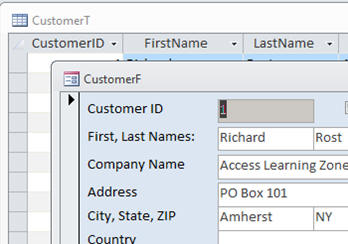
left off. This class focuses primarily on building and formatting
Forms in Access. You will learn:
 |
- Setup a
Trusted Location
- Working in Form Design View
- Manually Adding Fields - Manipulating Form Objects -
Lining up Objects on The Grid -
Formatting Your Form - Using Themes, Fonts, & Colors
- Working in Layout View
- Using Overlapping Windows |

Order Now |
If you would like a preview of what's covered in this class,
click here to watch the first lesson of
this course (free of charge), or scroll down for more information.


|
|
Access 2010 Beginner Level 2 |
| Description: |
Access
2010 Beginner Level 2 |
| Versions: |
Microsoft
Office Access 2010
Access 2007 users should be able to follow along fine |
| Pre-Requisites: |
Access 2010
Beginner Level 1 |
| Running Time: |
1 Hour, 23 Minutes |
|
Cost: |
$9.99 |
|
|
|
This class
picks up where
Level 1 left off. We will focus on designing and
formatting forms from scratch. In the previous class, we built a
simple form using the Access automatic form builder. In today’s class,
we’ll learn how to design a form from the ground up. This will
allow us to take full advantage of the power of Access form design.

We will begin by downloading the database from the last class.
We’ll talk about the security warning that comes up when you run
the database, and what it means. I’ll show you how to set up a
Trusted Location – a folder on your desktop – where you can run
databases without having to see that warning every time.

We’ll spend the majority of this class
learning how to build forms from scratch. Sure, Access can
instantly build a simple form for you, but understanding how to build
forms yourself from the ground up will help you to unlock the true
potential of building powerful, professional databases.

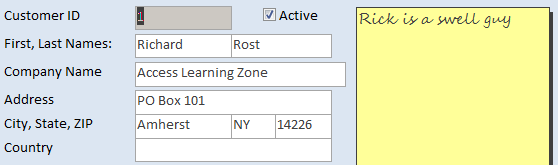
You will learn how to manually add fields
to your forms, working with the Field List.

You will learn how to manipulate
the different objects on your form, including labels, text boxes, and
check boxes. You’ll see how to move, resize, and delete them. You’ll
learn how to work with them in groups, and edit some of their
properties, such as changing the text on a label.

You’ll learn about The Grid, which
is the set of “dots” on the background of a form that Access uses to
keep your objects lined up all nice and neat.

You will learn how to apply different
formatting techniques to your forms. You’ll see how to change the
foreground and background colors of the controls on your form, and
background color of the form itself. You’ll learn how to work with
different fonts, line styles, borders, shadowing, effects, and
much more. All of this will allow you to make professional-looking,
unique forms for your Access databases.
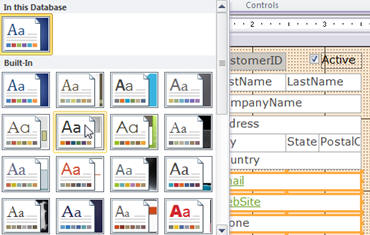
We’ll learn about Themes and how you can use them to instantly
change the look and feel of a form. You’ll learn the difference between
Standard colors and Theme colors. We’ll discuss how Themes
can make your database have a consistent look and feel.
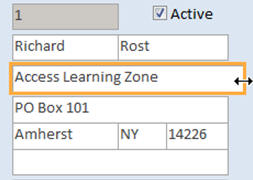
You will learn how to work with Layout View – a hybrid between
Form View and Design View. Layout View allows you can make
some changes to the layout of your form while being able to see the data
in it.
Finally, I’ll take some time to answer questions from students
that were posted in my online Access forums
related to this class. Some of the questions include: “What is an
LACCDB file?” “How can I switch from a tabbed to an overlapping
window interface?” “How to I pin commonly used databases to the
Recent Files list?” “Can I add data from two tables to a form?”
and “Can I change the background color of a checkbox?”
This is the perfect class for
anyone who is new to Microsoft Access 2010 (or 2007) and wants to
learn how to build forms from scratch. Of
course, if you have any questions about whether or not this class is
for you, please contact me.

Complete Outline - Access
2010 Beginner Level 2
00. Introduction (10:10)
01. Getting Started (12:26)
Download sample database
UNZIP the database file
Enable Content button
Setting up a TRUSTED location
Database Shortcut on Desktop
Quick Review of Level 1
02. Form Design 1 (12:13)
Building forms from scratch
Form design
Add existing fields
Field list
Switch to Form View
Switch to Design View
Adding fields to form
Deleting a field
Click and drag method
Add by double-click method
Add multiple fields
Shift-click method
Ctrl-click method
Move text box without label
Move label without text box
Delete just the label
Resize text box or label
Edit the text of a label
03. Form Design 2 (12:52)
The Grid dots
Sizing objects on the Grid
Select multiple objects
Resize, move multiple objects
Close the Field List
Resize the Form itself
Save form |
04. Form Formatting 1 (10:17)
Change Form background color
Textbox background color
Label foreground color
Select using the rulerbar
Layout View
Align Left, Center, Right
Ctrl-Click to select objects
05. Form Formatting 2 (8:42)
Themes
Standard Color vs Theme Color
More Colors
Full Color Palette
Shape Outline
Line Color
Line Thickness
Line Type
Property Sheet Overview
Special Effect Property
Shadowed
Change Font
06. Questions From Students (10:26)
What is an LACCDB File?
Show Hidden Windows Files
Overlapping Windows vs. Tabs
Pin Recent Database Files
Add data from 2 tables to a form
Change check box background color
07. Review (6:01) |

|
| |
| Keywords:
Form Design View, Formatting, Objects, Themes, Layout, microsoft access tutorial, microsoft access 2010 tutorial, microsoft access 2010 training, security, trusted location, trusted folder, shortcut, form design, design view, existing field list, field list, form view, layout view, text box, textbox, check box, checkbox, label, caption, grid, format, formatting, themes, theme, standard color, theme color, shape outline, line color, line thickness, line type, property sheet, special effect, laccdb file, hidden files, overlapping windows, tabbed windows, pin recent files |
| |
| |
Student Interaction:
Access 2010 Beginner 2
Richard on 2/19/2012:
This Microsoft Access video tutorial picks up where Level 1 left off. This class focuses primarily on building and formatting Forms in Access. You will learn:
- Setup a Trusted Location
- Working in Form Design View
- Manually Adding Fields
- Manipulating Form Objects
- Lining up Objects on The Grid
- Formatting Your Form
- Using Themes, Fonts, & Colors
- Working in Layout View
- Using Overlapping Windows
Click here for more information on Access 2010 Beginner Level 2, including a course outline, sample videos, and more.
NOTE: This is LEVEL TWO of my Access 2010 series. LEVEL THREE is not finished yet, but should be available soon. When you're finished with this class, if you want to keep learning Access, move up to my Access 102 class (yes, 102 covers different topics than this Level 2 class. They're in a slightly different order). It's for Access 2003, but you shouldn't have any problems following along with it. PLUS, when the corresponding class for Access 2010 is released, you'll get a FREE copy. |
Richard on 2/19/2012: Now that you're finished with this class, please take a few short minutes to complete our STUDENT SURVEY and let us know what you thought of the lessons!
|
Selby Halfpenny on 2/21/2012: Dear Richard, I am building your WorkOrder Seminar at the moment. It is great - Richard, many thanks.Following along and building your DB, students learn so much more if they follow along, Have been doing that. It is all the 'little things here and there' that really make the average DB a great DB. Many thanks and all the best for 2012. Cannot wait for your VBA lessons, but all lessons are excellent. Regards Selby P.S. Cannot wait for your Access Book to be published - Selby
|
Richard on 2/21/2012: If you're planning on working with JUST ONE database file, you really don't NEED to set up a TRUSTED LOCATION. Once you click on the "Enable Content" button, Access marks that specific database file as TRUSTED. You'll never again see the security warning message for that database unless you rename it or move it to a different folder. The reason why I show you how to set up a Trusted Location this soon is because I personally work with lots of different database files, and it's a pain to have to "Enable Content" on them every time I create a new one.
|
Harold on 2/22/2012: Hi..The video in lesson 1..Getting Started ends just as you begin telling us how to disable the security warning for trusted accounts. Additionally, the video will not run in the video player from your website so I'm using the one from the internet browser.
|
Alex Hedley on 2/22/2012: Hi Harold, Try downloading the video again from within the player. Sometimes if it doesn't download fully/correctly it won't play all the way through, a re-download will solve this problem. Alex
|
Mariea on 2/23/2012: Every lesson in this course, including the Review portion, was cut short (clipped)so some important information was not given.
Reply from Richard Rost:
Yes, I see that. I didn't notice it before. For some reason the timer is running too fast, cutting off the end of the video. While I'm investigating the cause of this, try switching over to the WINDOWS MEDIA PLAYER (in the Settings box). That seems to work OK.
|
AReaves on 2/24/2012: I was watching beginner 2:1 and it cut off before explaining how to change security settings.
Reply from Richard Rost:
Yes, there was a problem with the videos initially. It has been fixed now. Try watching them again.
|
Mariea on 2/24/2012: Hi Folks,
For some reason, even though I have Access 2010 (from Microsoft Office Professional 2010), I cannot click on a field in Form Design's Table/Field list and then shift-click another field (to include all the fields in between) so as to be able to drag several fields at once to my form. I have many years of working with 'Shift, Shift-Click' (contiguous selection) and 'Shift, Ctrl-Click' (non-contiguous selection) so I know I am doing it right. BUT in this case, it just goes directly to the field I shift-clicked and selects only that one.
Another thing: I have noticed that sometimes I can select a group of boxes by just touching each of them, and then at another time I have to completely enclose all desired boxes in order to select them.
What could be wrong with my application? I have tried uninstalling and reinstalling the program but it doesn't seem to help. Any thoughts on this?
Reply from Richard Rost:
I've noticed sometimes that the SHIFT-click or CTRL-click tricks only seem to work once you've already added at least one control to the form. I think this may be a BUG in Access. Give it a try. Add ONE field, and then try to add more fields using the SHIFT-click method.
As far as selecting controls goes, I've never encountered that problem. Just touching the controls has always worked for me. Other applications (like CorelDraw) force you to completely enclose the objects.
|
Bonnie on 3/6/2012: Richard, I am working in Access 2007. My gridlines are like a graph paper, with lines every centimeter (I am working in metric.) I do NOT have the fine dots that your demo shows -- is this a feature only in Access 2010 or is there a way for me to choose this format? Thanks for a really clear and helpful course. Bonnie
|
Bonnie on 3/7/2012: As I try to use CTRL-click in my form designer itself, it will not highlight more than one box, but SHIFT-click will act like I expect CTRL click to do: hightlighting those I choose that are not contiguous. In choosing from the field list both key combos work as I am used to them working. Somewhat different behavior that what Mariea experienced, but also strange! Bonnie
|
BRANDON NEWHOUSE on 3/24/2012: I have found lessons 1,2 and 4(so far) are having problems with the videos. I try and "rewind" certain parts but if you do it will freeze up. 1 and 4 only have sound and the video is the opening frame and if you try and fastforward/advance the video also freezes. I tried both in windows player and realplayer as well as nn the 599cd online player. Lesson 3 does not give me this problem. I also bought your 2003 version and they didn't do this. What do you suggest?
Reply from Richard Rost:
I just purchased new software for creating Flash videos out of my original recordings. I'm going to be recompiling the videos soon. Hopefully this problem will go away. Stay tuned.
|
kamar asuni lawal on 4/2/2012: hello richard, i dont why i cant forward the video when viewing
Reply from Richard Rost:
You should be able to jump to any spot in the video by clicking on the bar below the window.
|
Missy on 4/6/2012: Access 2010-Beginner 2- Forms: Following your directions I've created a form I love, is there a way to copy and paste the form design to use for a different table?
Reply from Richard Rost:
Sure. If all of your fields are named the same, you can just copy and paste the form itself (click on it in the Navigation Pane, press Ctrl-C to copy, then Ctrl-V to paste it). Open it up in Design View, then open the Property Sheet (Design Tab > Tools Section > Property Sheet). On the Data Tab, find the RECORD SOURCE property (on the top). Change that to the other table. If any of the fields are named differently, you have to change the CONTROL SOURCE property of those fields to match. That's all you have to do. We'll spend more time with form properties in upcoming classes.
|
Missy on 4/6/2012: Access 2010 - Forms - How do you have all first letters of each word in a form to capitalize automatically?
Reply from Richard Rost:
It won't happen automatically. You have to type them that way yourself. CustomerServiceF, for example.
|
Gaby on 4/8/2012: Your beginner training covers 1 query but I need to create an employee database and possibly a nurse licensing database for those employees and somehow query them together to track expiration dates and make sure they get new licenses when expired. I'm having difficulty in creating the queries from 2 different tables. Could you give a quick help on this?
Reply from Richard Rost:
By "query them together" do you mean MERGE the data from two tables into one set of records? If so, you need a UNION query, which is a little more advanced. I probably won't be covering that until the EXPERT series... but I've already covered it in my Access 2003 classes. It works almost exactly the same. I covered it in Access 223. If you REALLY want to learn about queries, I also have a 3-class series called the SQL Seminar. I cover everything there is to know about queries in SQL. UNION queries are covered in Part 1.
|
Alfred Daniels on 4/13/2012: Richard, I have Access 2010 (trial version) and Access 2007 on my home computer. I have Access 2003 at work. Can I take work databases home to work on and not lose any data? Do you think your 2010 training is best for my situation?
Reply from Richard Rost:
Access 2007 and 2010 can work with 2003 databases, just don't CONVERT them or else you won't be able to take them back to work. You should learn whichever version you'll be working with the most. If work is definitely going to stick with 2003 for the time being, then that's what you should learn. My 2010 lessons are BETTER, however as of right now I have many MORE 2003 lessons.
|
Bruce Reynolds on 4/22/2012: Topic: Custom color for Fill/Back Color
Question: It does not appear that Access 2010 will not allow you to specify a custom Fill/Back Color. Can one change the Fill/Back Color using Access VBA?
Thank you, Bruce
|
Bruce on 4/24/2012: You can actually specify custom back fill colors in the format section. I figured it out about 10 minutes after I sent the original post.
|
|
|
| |
|
You may want to read these articles from the 599CD News: |
|
|
|