Work with Images and Objects in Microsoft Access
Welcome
This seminar will teach you how all about working with images, pictures, graphics, OLE objects, attachments, and pictures from the Web. You will learn how to store pictures in your database, and how to work with images that are NOT stored in your database. You'll also learn how to work with the new Attachment data type.
This seminar came about because one of my customers had a need to work with a large number of images in his database, but storing pictures in an Access database is NOT a very efficient use of space. Your database gets big and slow very quickly. So, in this seminar, I will show you a technique for selecting a file by browsing your drives, copying that file to an Images folder, and then displaying that image in your database forms and reports without storing it in the database.
But... we don't stop there. Since we're going to learn about images, we might as well learn everything about images. We'll start with basic OLE objects (bound, unbound, linked, embedded, etc.) and move right into VBA coding for Image controls. You'll learn about the new Attachment field type and lots more.
 Resources
Main Seminar Goals
- Learn about the different types of OLE objects
- Discuss the most efficient way to work with images
- Embed and Link OLE objects into your forms
- Work with non-image objects (spreadsheets, docs)
- Display external images in your forms & reports
- Browse your hard drive to select a file
- Copy files to a central "Shared Images Folder"
- Display images found on Web sites in your Database
- Work with the Attachment type
Topics Covered
We will begin by learning about all of the different types of objects you can use in Microsoft Access. You'll learn about bound and unbound OLE objects, images, linking vs. embedding, non-image objects, when and when NOT to store images in your database, and you'll learn about the new Attachment data type.
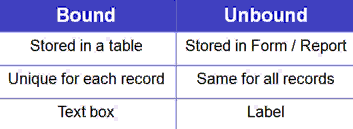
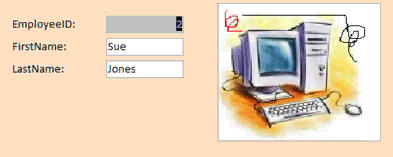
Next we'll build a table and form to store embedded OLE objects right in our database tables. This is OK if you don't have a very large number of images to work with. You'll see how easy it is to edit these images in place.
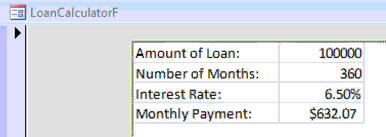
In the next lesson, you'll see how easy it is to work with non-image objects in your database. We will embed a Microsoft Excel spreadsheet into a database form and give our users the full functionality of Excel without ever leaving Access.
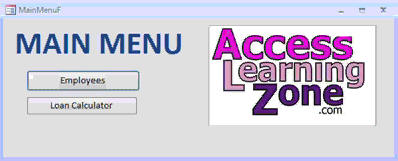
Next you'll see how we can embed a company logo ONCE in a single form, and then use that same image in all of our other forms and reports without making separate copies of it. This saves a lot of space in our database.
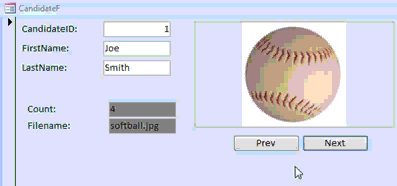
We will then learn how to work with the Image control. This allows us to specify the path and filename of a picture file on our hard drive (or network) and view the image without having to store it in the database.
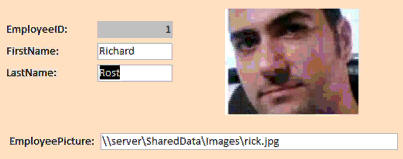
Next we're going to look at the Microsoft Common Dialog Control. This was an ActiveX control that shipped with Access 2003 and earlier, but is no longer available in 2007. It allows you to quickly and easily browse for a file on your hard drive.
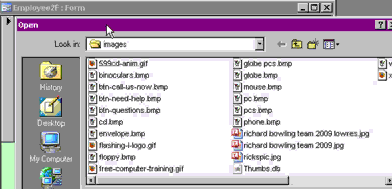
Don't worry, Access 2007 and later users. I've got a solution for you. Using a little bit of VBA code, we can access that Common Dialog window without a special ActiveX control.
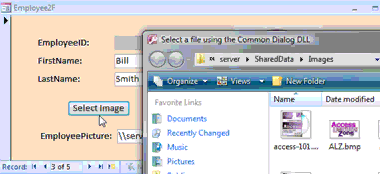
Once we learn how to select a file, now we can copy that file up to a central Shared Images folder (or just your database folder if you prefer). This way we can keep all of our images together in one place, and even rename them if we want. If you're working on a network, you want to put your images where everyone has access to view them. Don't panic... I will explain all of the VBA programming code you need to know to get this to work.
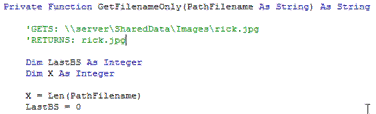
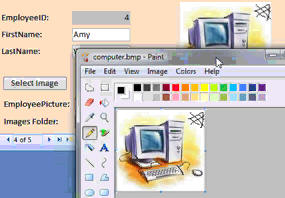
Next you'll see how you can give your end-users the ability to actually EDIT those pictures using Microsoft Paint. Even though the images aren't stored in the database, we can launch Paint and load up the pictures with just a few lines of VBA code.
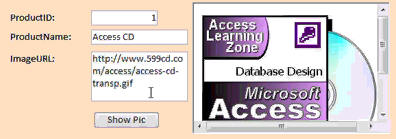
If you have a Web site with images on it, you can view those images and use them in your Access database forms and reports. This is especially handy if you already have all of your product pictures online. Just point to them, and voila...
Next, Access 2007 and later users will learn how to use the Attachment data type. You can store multiple objects (pictures, text files, documents, spreadsheets, you name it) as attachments to database records... just like Email attachments. I generally don't recommend storing files inside your database, but the option is available.
This seminar is perfect for anyone who wants to learn how to work with images, pictures, or any kind of objects in Microsoft Access databases. This seminar is long (over three hours) but it's broken up into easily managed lessons of about 10 minutes each. You can sit down, watch a lesson, review the material, test the code out yourself, and experiment. Do a little bit each day. It's long, but it's comprehensive - you won't miss a single step as I've recorded everything from start to finish. Of course, if you have any questions about whether or not this seminar is for you, please contact me.
Pre-Requisites
This is a Developer-Level Seminar. There will be a lot of VBA. It is strongly recommended that you have completed my entire Access Beginner and Expert series. My Developer 1 class is highly recommended so you understand the basics of programming in VBA. If not, at least watch my free Intro to VBA video.
Version
I am using Access 2007 in this seminar, however the lessons are perfectly valid for all versions of Access from 2003 and later. It's currently 2022 and I just recently verified that everything in this seminar still works with Access 2019 and Office 365. There are a few new things I've discovered since originally recording this seminar, and I've included those as addendums as well.
Enroll Today
Enroll now so that you can watch these lessons, learn with us, post questions, and more.

Questions?
Please feel free to post your questions or comments below. If you are not sure as to whether or not this product will meet your needs, I'd rather help you before you buy it. Remember, all sales are final. Thank you.
Keywords
microsoft access images, objects, ole, bound, unbound, linking, embedding, attachments, files, pictures, icons, zoom, clip, stretch, folder, copyfile, copy file, common dialog control, copy to server, images from web, image control, graphics, picture property, dll, winapi, dir, webbrowser, loadpicture
More Information
Transcript
Introducing the Access Imaging Seminar brought to you by AccessLearningZone.com. I am your instructor, Richard Rost.
If you have ever wanted to learn how to work with images in your Access databases more efficiently, this seminar is for you. We will start out by learning about all the different kinds of objects that you can put in Access databases: OLE objects, bound versus unbound objects, images, attachments, and more.
We will start out by learning about bound OLE objects. We will create an employee database where we can attach an employee picture and the resume. You will see how, with just a little bit of code, you can create a button that you can click, browse for a file, and then automatically embed that into the employee's record. We will also make an employee report.
Now, embedding pictures into your database is not always the most efficient way to go about things, especially if you have thousands of different pictures. So I will show you a technique using the image control, where you can store the location and the file name of the picture, and still have the full functionality of moving from record to record and displaying a different picture, both on a form and on a report.
This is great if you have really large databases that require lots and lots of pictures. We will also be able to select an image from anywhere on your computer, pick the image, and not only will the image location be stored in the database, but I will show you how, if you want, to have your database copy that file to a central repository.
For example, here I have a shared data folder set up on my server. So the user can pick the file image, it will be copied up to the server, and that location is stored in the database. I will show you how to do all this in the seminar.
You will also learn how to pull images off of websites. If you want to display pictures that are on different websites, you can easily do that inside of your Access databases as well. That is great, for example, if you already have a product database online and you just want to show the pictures of your products to your Access users right from the website.
We will see how to use the new attachment type in Access 2007 and how you can store multiple attachments for each record in your database. You will see how, with a little bit of VB code, you can scroll through them and even access the attachments window.
You will see how to use unbound OLE objects to embed things like Microsoft Excel spreadsheets inside of your Access forms. I will show you a neat little trick where you can have one copy of your company logo stored in a logo form and then have that logo appear on multiple forms and reports without having to have separate copies of it on each form and report. That will save you a lot of space in your database.
As you can see, there is a lot more to the Imaging Seminar than just working with images.
For a lot more information on this seminar, please visit my website at AccessLearningZone.com.
Intro
In this seminar, you will learn how to manage and work with images in Microsoft Access databases, including using OLE objects, bound and unbound image controls, and attachments. I will show you how to set up employee databases with embedded pictures and resumes, store and display image file locations for large databases, copy images to a central server repository, and display images from websites. We will also cover adding multiple attachments per record, embedding Excel spreadsheets, and techniques for sharing logos across forms and reports to save space.
Quiz
Q1. What is the primary focus of the Access Imaging Seminar?
A. Learning how to create tables in Access
B. Efficiently working with images in Access databases
C. Designing custom queries
D. Understanding Macros in Access
Q2. What will you create first in the seminar?
A. A product inventory form
B. An employee database with picture and resume attachments
C. A sales report
D. A budget analysis tool
Q3. Which method is suggested for databases with thousands of pictures?
A. Embedding all images directly into the database
B. Storing the location and file name and using the image control
C. Using only OLE objects for all images
D. Printing images and scanning them into Access
Q4. What additional feature will you learn regarding image storage locations?
A. How to store images only on USB drives
B. Copying selected images to a central repository or server folder
C. Encrypting images within the database
D. Watermarking images automatically
Q5. What capability does the seminar cover concerning web images?
A. Downloading websites into Access
B. Displaying images hosted on websites inside Access databases
C. Embedding web pages as attachments
D. Uploading local images to websites directly from Access
Q6. What is new in Access 2007 that is discussed?
A. Advanced filter options for queries
B. Attachment type that allows multiple attachments per record
C. PivotTable views
D. Macros editor
Q7. What can you do with a little VB code when handling attachments?
A. Encrypt attachment files
B. Scroll through multiple attachments and access the attachments window
C. Compress attachments before upload
D. Batch rename all attachments
Q8. How can you reuse a company logo on multiple forms and reports without storing multiple copies?
A. By embedding the logo as a text field
B. Using a logo form to store a single logo and referencing it
C. Using different file formats for each form
D. Linking to a different logo in each report
Q9. Which of the following is NOT specifically mentioned as a topic in the seminar?
A. Unbound OLE objects for Excel spreadsheets
B. Storing and displaying images from a web URL
C. Creating calculations in Access queries
D. Attaching multiple files to a record
Answers: 1-B; 2-B; 3-B; 4-B; 5-B; 6-B; 7-B; 8-B; 9-C
DISCLAIMER: Quiz questions are AI generated. If you find any that are wrong, don't make sense, or aren't related to the video topic at hand, then please post a comment and let me know. Thanks.
Summary
Today's video from Access Learning Zone introduces the Access Imaging Seminar. I am your instructor, Richard Rost.
If you want to manage images more effectively in your Access databases, this seminar is designed for you. We begin by exploring the different types of objects that can be incorporated into an Access database, such as OLE objects, images, attachments, and the distinctions between bound and unbound objects.
First, I will cover how to use bound OLE objects. Together, we will create an employee database where each employee's profile can include a picture and a resume. I show you how to use a small amount of code to make it easy to select a file and embed it directly into each employee record. We will also build an employee report to display this information.
However, embedding images directly is not always the best option, especially if your database will include thousands of images. For cases like this, I demonstrate how to use the image control to store the location and filename of each picture instead. With this method, you can still browse from one record to another and have the corresponding image display on your forms and reports, without the overhead of embedding the files themselves.
This solution is ideal for large databases with many images. I also show you how to select an image from your computer, store its location in your database, and, if needed, copy that file to a shared folder or central repository—such as a shared server location—so that others can access it easily. The seminar includes step-by-step instructions for setting this up.
You will also learn how to display images hosted on websites. If you already manage an online product catalog, for example, you can show product images right from the web inside your Access database. This is a helpful option when you want to avoid duplicating files between online and desktop systems.
Later in the seminar, I teach you about the attachment data type added in Access 2007. This allows you to save multiple attachments, such as images or documents, for each record. With some Visual Basic code, you can scroll through the attachments and open the attachments window when needed.
In addition, I will cover the use of unbound OLE objects, such as embedding Microsoft Excel spreadsheets in your Access forms. You will learn a useful trick for managing elements like your company logo: by storing a single version of your logo on a dedicated form, you can have it appear across multiple forms and reports without increasing your database size with duplicate images.
There is a lot more to this Imaging Seminar than just manipulating pictures. You will pick up a wide variety of tools for handling different objects and attachments to make your databases more flexible and powerful.
If you would like to see the complete video tutorial with step-by-step instructions for everything covered here, visit my website at the link below.
Live long and prosper, my friends.
Topic List
Types of objects you can store in Access databases
Using bound OLE objects for images and files
Creating an employee database with pictures and resumes
Embedding images into Access records
Automating file selection and embedding with VBA
Designing employee reports with images
Storing and displaying image file paths with the image control
Displaying different images per record in forms and reports
Setting up a central image repository folder
Copying user-selected images to a server location
Displaying website images in Access forms and reports
Using Access 2007 attachment fields for images and files
Scrolling through multiple attachments with VBA code
Accessing and managing the attachments window
Embedding unbound OLE objects like Excel spreadsheets
Storing and displaying a single company logo on multiple forms and reports
Primary Topics
Access images, OLE objects, bound vs unbound objects, image control, file paths, attachments, VB code, reports
Secondary Topics
copying files to repository, online images, multi-use logos, embedding spreadsheets