599CD.com   Full View


What's New?  |  Tutorials  |  Tips  |  Blog  |  Forums  |  Help  |  Customer Logon  |  Order


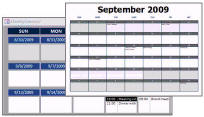
  If you want to make Microsoft Access forms and reports that LOOK like real monthly Calendars, then take a look at my Access Calendar Seminar.

This class (Access 206, below) covers scheduling and task management, but doesn't actually print a monthly calendar report.
 
Courses - Microsoft Access 206
Description: Intermediate Microsoft Access 6
Running Time: 68 minutes
Pre-Requisites: Access 205 very strongly recommended
Versions:
We use Access XP in this course, but the lessons are valid for all versions of Access from 95 to 2003. There are cosmetic changes in Access 2007 and 2010.

*** Order before 2/7/2012 to get a FREE upgrade to our Access 2010 version! ***

 
Microsoft Access 206
Intermediate Access 6

Task Management System, Synch Records on Two Forms, Set Values with Buttons, More Macro Tips, More. 68 Minutes.
 

AC206 Major Topics

  • Task Management System
  • Named Macro Sections
  • On Current Event
  • GoToRecord, GoToControl
  • Expression Builder

In this class, and Access 207 which directly follows, we will be building a Task Management System. We will teach you how to manage your tasks (to do list). We will learn how to synchronize the records on two forms. You will learn how to do more with buttons (like set field values). We will do more with Macros.

We will begin by setting up our Task Management table, the supporting tables, and forms. This will include fields to give each task a priority (high, medium, low, etc), a category, and whether or not the task is recurring.


While working on this form, we'll assign macros to the On Double Click events for each of the combo boxes - that way you can double-click on each combo box to open up a supporting table where you can edit the list of priorities, categories, and so on. In order to do this, we'll learn about Macro Names, where you can group sections of related macros together.


Next we'll make a Task List form which is a continuous form that will allow us to see all of our tasks in a nice, compact format. It's basically our "To Do" list.
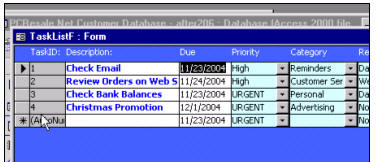
 

Next we will learn about the On Current event, and how we can use it to synchronize the records on two forms. When we click on a record on our Task List form, the related Task will open up in the Task Form. This is a really powerful (and really cool) technique.


We'll learn some new Macro commands, like GoToRecord, GoToControl, and SetValue. You will learn how to turn the Wizards off and manually assign macros to buttons.


We'll take a look at the Expression Builder. Even though I personally don't use it often, I'll show you how it works.


We'll create some buttons on our Task form to change the task due date to today, tomorrow, plus a day, minus a day, and more. The focus here is to make buttons that can change field values.


Make sure to get yourself a copy of the Handbook for this course. There are a ton of ideas that I threw in while I was writing the book - after the course videos were made. The handbook has lots of extra tips in it!


Don't miss this course! We cover a lot of really cool tips and tricks with relation to macros and form values.


Access 206 Outline
 
Lesson 1. Setting up Task Tables
Create TaskT table
Create PriorityT table
Create CategoryT table
Create RecurringT table

Lesson 2. Setting up the Task Form
Create a TaskF simple form
Create combo boxes for Priority, Category, Recurring
Modify the Row Source for each to Sort the boxes
Create a macro to open each table when combo box dbl-clicked
On Dbl Click event
Macro Names (grouping macros)
Macro to open supporting tables

Lesson 3. Task List Form
Creating a Task List continuous form

Lesson 4. Synch Task List to Task Form
Creating a macro to open a specific form
Setting the OnCurrent event in the Task List Form
GoToRecord macro command (macro action)
GoToControl macro command
Creating a command button without the wizard
Assigning a macro to a command button
SetValue macro command
Using the Expression Builder
Creating buttons to set the due date to today

Lesson 5. More Date Buttons, Requery Button
Button to set due date to tomorrow
Button to set due date plus one, minus one day
Learn about adding fractions of a day
Button to set due date to "later today"
Creating a second bound date field with different format
Creating a button to requery your form results


Try a FREE Demo Lesson


You may want to read these articles from the 599CD Blog:


Need Help
 
Do you have questions about Word, Excel, Access, Web Design, or computers in general? Just ask us anything you'd like. Click here for assistance.
 

Get Free Tips & Tricks
 

Join our mailing list today and get information on our Free Tips & Tricks Newsletter including free video tutorials, eBooks, live seminars, and more.

Email:
Name:
Type in the word to the left:
 
Your email will be kept 100% safe and will never be given to 3rd parties.

Subscribe to our RSS FeedWhat's This?

Facebook  Twitter  RSS  hide  help

599CD Home   |   Learn More   |   What's New?   |   Contact Us   |   Free Demo   |   FAQs   |   Order Now   |   Affiliate Program   |   TechHelp   |   MYOLP   |   Jobs   |   Downloads   |   Handbooks  (Text)   |    Mailing List   |   Lost Passwords   |   Referral Program   |   Online Poll   |   Corporate, Educational, Government, Non-Profit Sales   |   Message Forums   |   Testimonials   |   Privacy Policy   |   Free Gift CDs   |   Consulting Services   |   Waiting List   |   RSS Feed   |   Tips & Tricks


What's New  |  Home  |  Courses  |  Demo  |  Learn More  |  Contact  |  Order