|
Q: Do you have step-by-step download instructions? A:
Yes, of course! To download a file is to copy it from
our Web site to your local computer's hard drive. It's an
easy procedure if you follow it step by step.
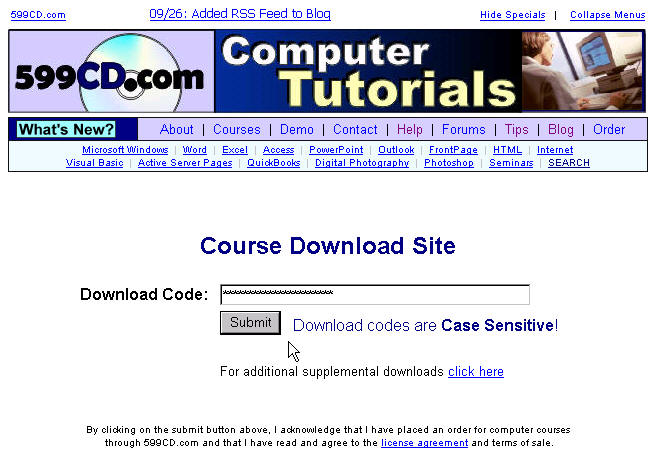
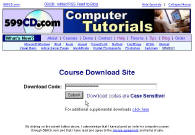
Log in to our download page at
www.599cd.com/download and
enter in your customized download code that was given to you when you
purchased your software. You might also have a link in your Email that
will take you right to our downloads page.
click on any image to enlarge it
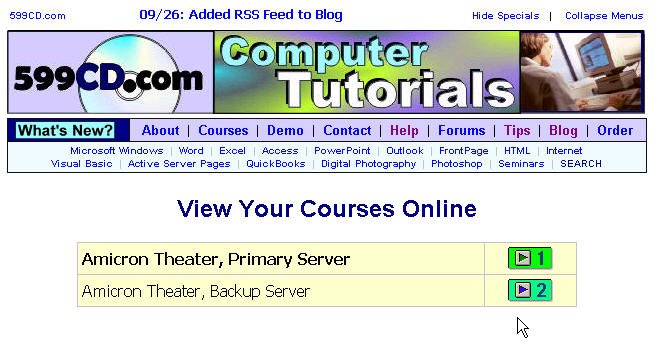
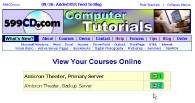
At the top of the page, you will see links to our
Amicron Theater. Here you
can watch all of your courses online - right in your web browser -
without having to download them. You might see more than one server to
choose from. Try the top one first. They're both the same. We have more
than one to help with all the demand.
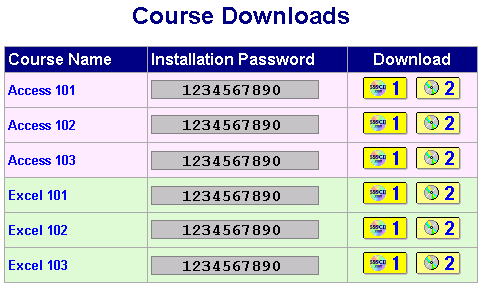
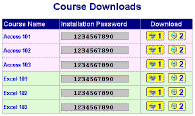
Below the links for the Theater, you will see a list
of all of the available courses that you purchased. You will see the
course name, your installation password, and one or more
download buttons to download your courses. Again, we have multiple
servers to assist with the demand.
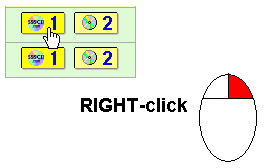
Using your mouse, RIGHT-click
on the download button for the course you wish to download.
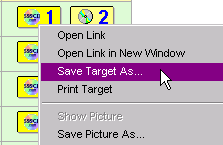
A popup menu will appear. This menu might
appear slighty different depending on the browser you have (Internet
Explorer, FireFox, etc.). Click on Save Target As.... (FireFox
users click on Save Link As...)
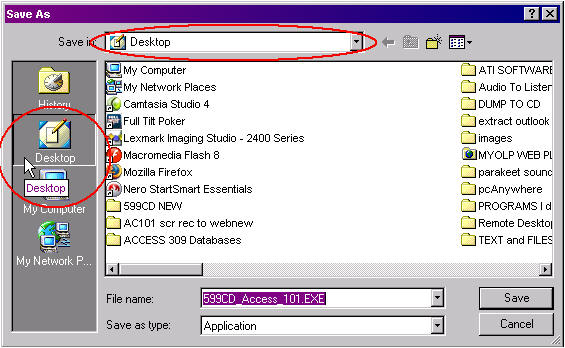
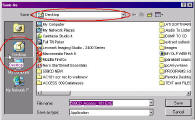
In the Save As box, drop the
"Save In" menu down by clicking on the little down-arrow.
Select your DESKTOP as the location to save your file.
Alternatively, if you have a Desktop icon in the sidebar to the left, just
click on that. Then, click
on the SAVE button in the bottom-right corner.
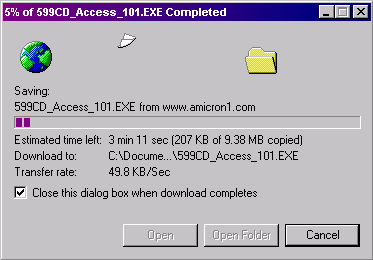
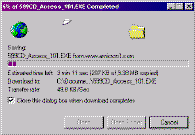
You will now see your file
downloading. This process can take anywhere from a few minutes to an hour,
depending on the speed of your Internet connection. If you have a slow
dialup connection, you may want to go get a cup of coffee and watch the
evening news. If you have a DSL or cable connection, the download should
take a minute or two.
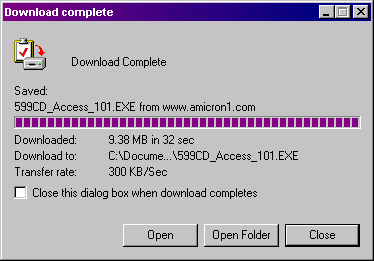
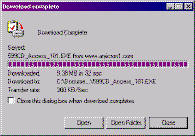
STEP 6. When your download is complete, you
will see the following screen. Click on the Close button.
STEP 7. Now, minimize all of the
windows you may have open on your screen so that you can see your
Windows Desktop. If you don't know what the terms "minimize"
and "desktop" mean, then you should be taking our Windows 101
class. Don't feel bad, that's what we're here for. Please
contact us for a detailed explanation and
we can help you in more detail. You should see your downloaded course
file on your Desktop.
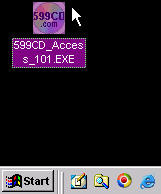
STEP 8. Now, just double-click on it and your
course should begin installing. Once the course starts to install, you
will be prompted for your INSTALLATION PASSWORD.
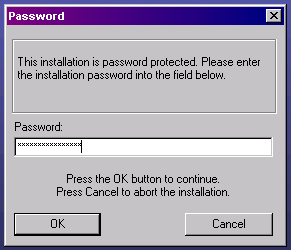
This password was
listed on the course download page. You may either
type this password in manually, or copy and paste it in from the download
screen (if you don't know how to copy and paste, you should take our
Windows 120 course. Switch back to your Web browser, and find the installation code
for your course. We recommend you print this page out for
safe-keeping.
IMPORTANT NOTICE:
Do not share your installation passwords. They are unique.
Using your password, someone else could access your account information
online - including your credit card number and address.
If you have any problems, please try
running through our TROUBLESHOOTER. If all
else fails, please contact us.
There will be one or more
DOWNLOAD LINKS on the right side for
you to download your course as some of our more popular courses may be on
multiple servers. Just select one. If the speed is slow, you can try the mirror
site(s). For best results, right-click
on the title above and select "Save Target As..." (Internet
Explorer) or "Save Link As..." (FireFox) to save the
lesson to your computer. Remember to back up your lesson to a CD for safe
keeping, but you can always come back here and download it again.
For detailed download instructions, click here.
The INSTALLATION PASSWORD is
a password that you will need to install your course on your computer. Please remember to
PRINT OUT THIS PAGE so that you don't lose
your installation passwords! You will need the installation password any
time in the future that you wish to install your courses. Also, please be sure NOT to give out your customized download
code or installation passwords to others. In the future, we will be enhancing our web site, and your
account information will be available on this page. So be sure to keep your
codes private.
Please note that you must have
Microsoft Internet Explorer 5.0 or
higher AND
Windows Media Player 9
or higher (or WMP 7 with the WMP 9 CODECs) installed on your computer BEFORE
you install our software. You must also have the Adobe Acrobat Reader to
view our Handbooks. You can obtain these free of charge by visiting our
SUPPLEMENTAL DOWNLOADS PAGE. By downloading any of the
above courses, you acknowledge that you have placed an order for computer training through 599CD.com and that
you have read and agree to the
license agreement and terms of sale.
Having problems
downloading? To minimize traffic on our
main web server, our downloads are sometimes housed on a separate server. We
sometimes use a non-standard port on this download server (port 83 instead of
the standard port 80 for web traffic). Most users should be unaffected by this,
however if you have a firewall or proxy server that blocks non-standard ports,
you may need to temporarily disable this firewall. Also, due to the overwhelming
demand for our courses, you may notice that download speeds slow down
dramatically during peak times - especially in the few days following the
release of a new class. If one server doesn't work, try another.
|