Count Items in a Report
How to count items in a report, resetting counter for each group
Q: I'm a member of the
Access Insider's Club.
I want to number the lines in an Access report. For example, I want to
group employees by department, sorted by last name, first name. Next to
each employee I want a number which increments by one for each employee.
E.g.:
1 Brown, Joe
2 Jones, Allison
3 Smith, Sam
and so on for however many employees in that department. I want the
numbering to start over for each department. If a department goes to
more than one page, the numbering should NOT start over with the new
page, only when the department changes. I can't think of a way to do
this. >Greg
A: Greg, since I always help
my Access Insider's Club,
I've put this together just for you. There are a couple of different
ways you can do this, but here is a solution that doesn't involve any
programming.
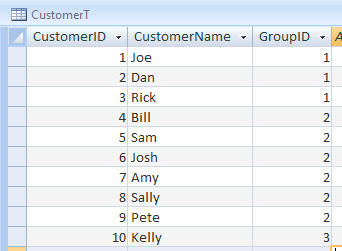
First, here's a simple table I'm going to use for this example. It's
just a CustomerID, CustomerName, and GroupID which would represent your
"department." Yes, I'm stuck on Customers, but you could easily use this
for Employees.
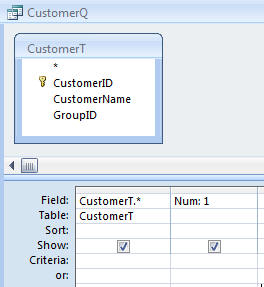
Now, create a simple query based on this table, but we're going to add
one field to it. We're going to add a calculated field called Num which
is just set equal to the value of 1. You'll see why in a few minutes.
Just type in this for the field: Num: 1
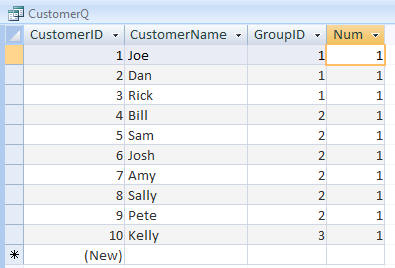
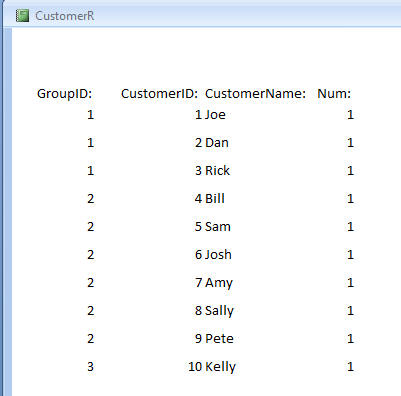
When you run this query, you'll see that each customer has a 1 next to
him. That's OK.
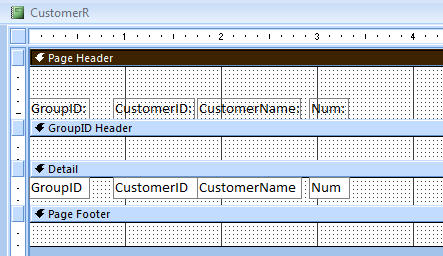
Now create a simple report based on this query. Here's what mine looks
like:
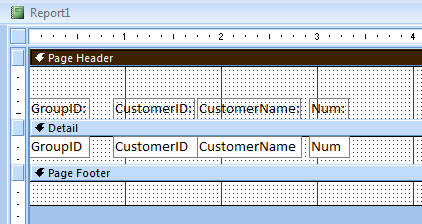
When I run the report, nothing fancy happens:
Now, let's create Sorting & Grouping Levels to break these customers
down by group (employees by dept, et al.)
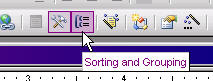
In Access 2003 or earlier, you just click on the Sorting & Grouping
Level button on the toolbar. Then set up a group for GroupID and turn on
the header or footer if you want it. I cover this in detail in
this
tutorial.
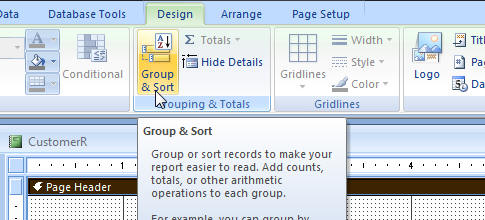
In Access 2007 they've really moved things around a lot (I still don't
like Access 2007). You have to click on the Group & Sort button.
Then click on "Add a Group."

Then pick the field - in this case GroupID.
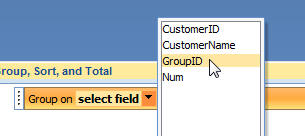
That will add the Group Header for you.
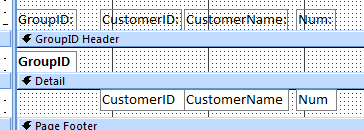
I'll move the GroupID into the Header and bold it, just so it looks
better.
This will give the report this look:
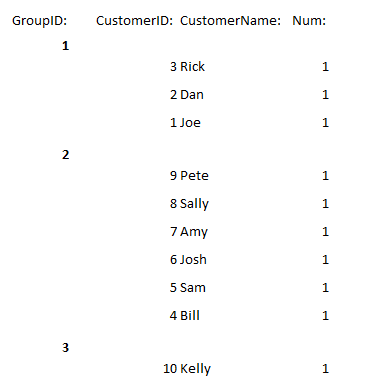
Now, what about the numbering you asked for? Well, here's what all those
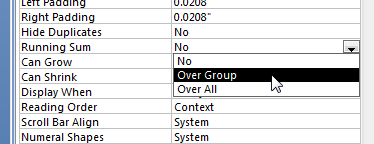
1s are for. Open up the properties for that Num textbox and find the
RunningSum property. Set it to "Over Group."
Now look what you get:
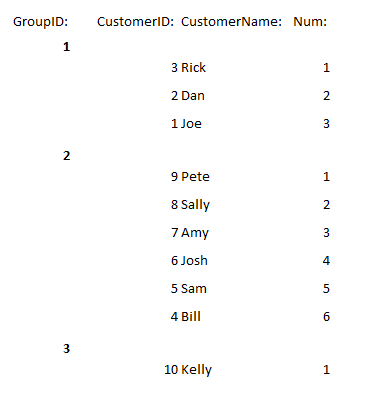
There you go. The RunningSum property adds up the values of all of these
items and then resets that value for every new group. That's why I had
you create that query value with the 1 in it. No programming required.
Of course, sorting your names and all that stuff is easy. I cover that
in my tutorials - which I know you've watched.
Hope this helps!

By Richard Rost


Click here to sign up for more FREE tips
| 


