|
Microsoft Access 202
Intermediate Access 2
More command buttons, setting
values across forms, sorted combo boxes, form/subforms, and more.
74 Minutes. |
| |
|
AC202 Major Topics |
- Button to Show Specific
Record
- Tab Stop, Tab Order
Properties
- Sorted Combo Boxes
- SQL Primer
- Form / Subform
Relationships
- Visible Property
|
This class follows Access 201,
which we strongly recommend before taking this class. Access 201
covers all of the basic fundamentals and relational database concepts
that are key for this course.
We'll begin by
placing a command button on our customer form to show just the
contacts for the current customer. This will allow us to see all of -
say - Joe Smith's contacts.

Next, we'll learn how to make the combo box on our
contact form get its default value from the currently open customer
record. This will teach us how to get a value from a different form
using a new kind of naming notation. The benefit - we can create new
contacts without having to fill in the customer value.

We'll learn about the Tab Stop property -
so we can make our Tab Order skip over the first few fields and
go right to the Notes field when opened.

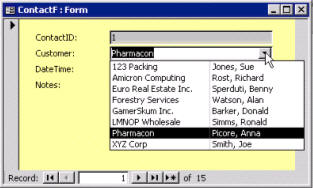
Next, we'll learn how to sort the company names in
our customer combo box by creating a sorted query to do the job...

...and then manually changing the combo box Row
Source property to get the values from the new query.

The result? A sorted list.
We will also teach you just a little bit of SQL
(Structured Query Language) and show you how to modify the row source
property without making a query to change that sort. We'll get
into more SQL in future courses - we just wanted to give you a taste
today.

We'll learn about more combo box properties, such
as the List Rows and List Width properties.

Next, we'll enhance our contact management system
by integrating a Callback feature into it. This way we can
generate a listing of any customers we have to call back. We'll start by
adding the necessary fields to our table and form.

We'll create a Callback List Form which is a
continuous form showing all of our callbacks - sorted by date. We can
click on one of them and then click on a button to open up either the
contact itself or the customer's record.

In the following lesson, we'll learn about
Subforms, which are forms that can go inside of other forms to show
related data (like showing the customer's last couple of contacts right
on the customer form). We'll start by designing a mini contact subform.

Then, we'll use the Subform Control to
place the subform inside of our main parent form.

We'll teach you how to hide certain fields (like
those ID numbers we don't need to see) with the Visible property.

In this lesson, we'll also give our Main Menu
a bit of a face lift. What we've had going so far was nice, but it's
starting to get cluttered, and lacks a certain professional tone. Let's
upgrade it a bit...

We will also see how to use the Phone
Autodialer so we can just click on a button and have our computer
dial the customer's phone number for us!

We learn several key concepts in this
course. Learning how to get values across multiple forms is a very
important concept. Also, we will be building many more form/subform
pairs in the future - especially when we get into our Order Entry
System. Don't miss this course.
|