| |
| |
|
Courses - Microsoft
Access 103 |
| Description: |
Using
Microsoft Access 2 |
| Running Time: |
84
minutes |
| Pre-Requisites: |
Access 102 very strongly recommended |
| Versions: |
|
We use Access XP in this course,
but the lessons are valid for all versions of Access from 95 to 2003.
There are cosmetic changes in Access 2007. Order before 7/8/2009 to
get a FREE upgrade to our 2007 version when released!
|
|
|
|
|
| |
 |
Microsoft Access 103
Using Microsoft Access
Build a Main Menu, command
buttons, form properties, customer list form, continuous forms, track lead
sources. 84 Minutes. |
| |
|
AC103 Major Topics |
- Create a Main Menu Form
- Continuous Forms
- Form Header & Footer
- Combo Box With Data
|
In this class, we'll pick up where
we left off in Access 102. First, we'll start by creating a
Main Menu form to provide our users with a clean and easy interface
for navigating through the different forms in our database. We'll use
command buttons to open up other forms. We'll learn
how to adjust various form properties such as captions,
navigation buttons, record selectors, scroll bars, and such.

We'll learn how to make this Main Menu open up
automatically when our database is opened. We'll see how we can
hide the main database window from our users - so they can't have
direct and easy access to our tables and queries. We'll also learn how
to make a shortcut to our database on the desktop.

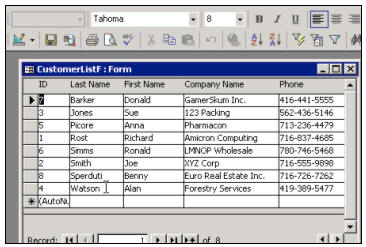
Next, we'll build a Customer List Form. On
this form, we'll have a sorted list of customers. Our user will be able
to click on one of the customers in the list, and click on a command
button to open up that specific customer's record. This makes
navigating through your customer records much easier, and it will teach
us how to create command buttons to open forms and display a specific
set of records. In creating this form, we'll learn about single v.
continuous forms, the form header/footer, and more form
properties.
Although we don't spend a whole lot of time with
them, we'll also learn how some of the Autoforms work, and we'll
work briefly with the Form Wizard. Of course, we prefer to teach
you how to build forms manually, but the wizards can sometimes come in
handy if you're in a pinch and need a quick form built.

Finally, we'll track lead sources for our
customers. A lead source is essentially where the customer found out
about us (radio, TV, etc.) We'll create a separate table for our list of
lead sources, and we'll see how we can create a combo box on the
customer form to select a lead source - and how to dynamically change
this list using a lead source form.

We'll also look briefly at another one of
the form wizards to construct a quick form for our lead sources - so
that our users can add and remove options from the list.

We'll
update our Main Menu with the new buttons, and additional
features. 
In this lesson our database starts to become more of
a real working database. We're starting to add features that make
it real user-friendly - such as the Main Menu. You'll start to see this
database evolve into something you could actually use in a real
production (work) environment.
|
Access 103 Outline
|
l. Introduction
Objectives
Pre-requisites
Versions used
How to learn
Included files
2. Main Menu, Part 1
Creating a form with no data
Unbound form instead of a Switchboard
Command button to open a form and show all records
Form properties
Form caption
Record selectors
Navigation buttons
Scroll bars
3. Main Menu, Part 2
Form background color
Label control
Label properties (font, size, bold, effects, etc.)
Resizing a label
Putting an image on a command button
Button properties
Send to back / bring to front
Format painter
Setting a database startup form
Application title
Hiding the database window
Unhiding your database window
Creating a shortcut to your database on your desktop
4. Customer List Form
Query: sorted list of customers
Building a form based on a query
Lining fields up horizontally
Continuous forms v. single form
Optimizing form space
Form header & footer
Using the rulerbars to select across/down
Cleaning up your labels
Command button to open a form and show specific records
Opening the selected customer record
Filtered results in your form
Removing a filter
Autoform: Tabular
Autoform: Columnar
5. Tracking Lead Sources
Adding a lead source field to the customer table
Combo box with static list of lead sources
Making at table to store a dynamic list of lead sources
Creating a combo box based on a table
Adding new valves to your table
Updating our Main Menu with the new buttons
Using the Form Wizard to create a quick form
Create a form for lead sources using the wizard
Renaming your form
Create a button to close the database
6. Review
Review topics
Skills check
What's next? |
| |
|

Try a FREE Demo Lesson |
| |
| |
|
 |
Huge Discounts Available
When you purchase multiple classes together
Huge savings up to 50% off! Order Now. |
|
| |
Student Interaction:
Microsoft Access 103
|
Richard on 1/1/2007:
Build a Main Menu, command buttons, form properties, customer list form, continuous forms, track lead sources. |
|
Wiley Redding on 7/3/2008: Access 103 showed a safe way for other users to look for information without hurting your tables. Great idea, well planned instructional video. |
|
Maks Kelemina on 8/10/2008: There is a light at the end of the tunnel |
|
Aundrae Murdock on 9/7/2008: HiRichard, In Access 103, TIME INDEX 20:53, on the CustomerF:Form, is their a easy method of just typing the last name or first name of the customer and their record information would display,instead of having to use the record selector to scroll through until you find the name. |
|
Richard Rost on 9/8/2008: Aundrae, you can use the SEARCH button on the toolbar to quickly find a record, or you can apply a filter like I showed you in Access 102. Unfortunately developing a CUSTOM search button or any other method involves some programming. I do cover this, though in Access 307. |
|
rj jenson on 9/11/2008: I want to give you a bit more information following my last comment regarding the button not displaying the correct record. I tried re-doing the whole database with the same result. I then tried redoing the tutorials again but starting in the database you had created. The button worked! I decided it must be a setting in access that you have set but not informed us of on your video. Or perhaps your version of access and access 2007 [more...] |
|
Richard Rost on 9/11/2008: RJ, that's certainly messed up! I don't really like Access 2007 much. You're right - those "embedded macros" are a pain in the behind. I believe you can go into Setup and change it so that Access doesn't use them - and just uses Event Procedures (VBA). |
|
rj jenson on 9/11/2008: Hi Richard. I tried looking for the setting you mentioned but it was nowhere to be found. I considered downgrading my version of Access so that I could follow your excellent tutorials without similar problems arising in the future. Then I had a brain wave- I saved my database as an access 2002-2003 database and voila - no more automatic enbedded macros and my database instantly has the default settings as your own version which makes [more...] |
|
Richard Rost on 9/12/2008: I'll be installing Access 2007 on my training machine (again) this weekend. I'll poke around and let you know what I find out. If I don't post something here by Monday, REMIND ME. I've got a million things on my plate right now. :) |
|
Bob B on 11/22/2008: Richard
I am using Access 2007 and am in your 103 lesson, builing a customer list. When I insert the command button to display specific records,and when I highlight a record, it keeps bringing me to the start of the CustomerT and not to the customer record which I want to open. Any suggestions? |
|
Derek Mitchell on 2/12/2009: I have Access 2003 and when using the form design window I find that I have only gridlines and no grid dots. I prefer the grid dots as it's better and more helpful in lining up objects, etc. Can I turn this option on? |
|
Richard Rost on 2/12/2009: Check your GRID settings in the form properties. If you have it set too high (or 0 or blank), the dots will actually disappear. Set them to something like 8 or 10 and you should see them. |
|
ian dudley on 4/13/2009: Hi Richard, why did you choose not to assign a primary key to each record in the lead source table? |
|
Richard Rost on 4/14/2009: Ian, good question. It's not ALWAYS necessary to include an ID for every table, especially since I wasn't planning on making this table RELATIONAL to other tables. If it's just a simple little table that you're going to use to feed a combo box, you don't really need an ID. If, for example, you want to track shipping methods and you just need "US Mail, FedEx, and UPS," then you might not want to bother. It was just a matter of persona [more...] |
|
Daryl Armstrong on 4/25/2009: Hello Richard as I was performing the class steps on making a Dynamic combo box, I kept getting an popup warning each time I entered a leadsource. ("Access Database can't find the macre 'Customers.' The macro(or its macro group) doesn't exist,or the macro is new but hasn't been saved......)
Any Help? Access 103 Time Index 9:58 |
|
Richard Rost on 4/27/2009: Daryl, Access 103 Lesson 4 has nothing to do with macros. I can't understand why you'd get that error message there. I'm guessing perhaps you have a value like 'Customers' in one of the Event fields by accident. |
|
Edward Coult on 5/26/2009: Hi Richard thanks for the great tutorials on Access, but i am a little stuck on one topic.
What i am trying to do is make a database to record my Book collection.
I have made a Book table with the author and book title and various other data. But because i want to be able to pick the publisher and book topic from a list i have used the combo box to pick from a table i have made with the publisher name. Following your tutorial in Ac [more...] |
|
Richard Rost on 5/26/2009: Edward, this is covered in Access 201 and 202. You have to relate the two tables together with a query. Right now, in Access 103, we're only dealing with using a single table at a time. |
|
|
| |
| |
|
You may want to read these articles from the 599CD Blog: |
|
| |
|
 |
Need Help? |
| |
|
| Do you have
questions about
Word, Excel, Access, Web Design, or computers in general? Just
ask us anything you'd like. |
|
|
|
|
|
| |
|

CLICK HERE for a FREE
lesson |

Order
your first 599CD course now.
Your Satisfaction is Guaranteed!
|
|
|
|
|
|
| |
|
|
|
|